Navigation
Viewport-aware transform tools designed for fast object manipulation.
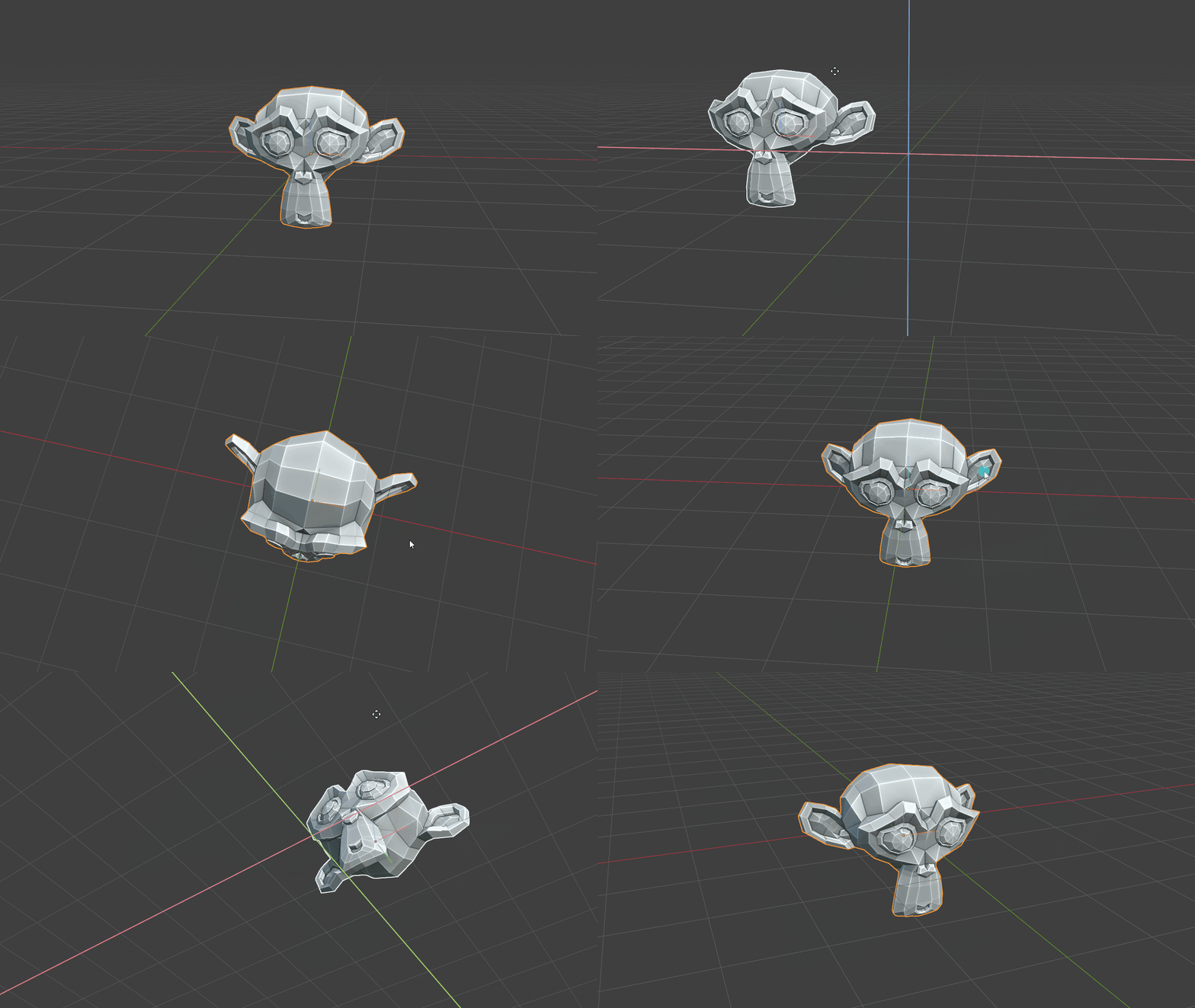
VP Step Rotate 45/-45
Rotate selected objects by 45 degrees around the local axis best aligned with the camera. By default, Ctrl + Shift + Mouse Wheel Up rotates +45°, and Ctrl + Shift + Mouse Wheel Down rotates -45° (Object Mode). You can change or disable these shortcuts under Edit > Preferences > Add-ons > H3D Toolkit > Navigation Hotkeys.
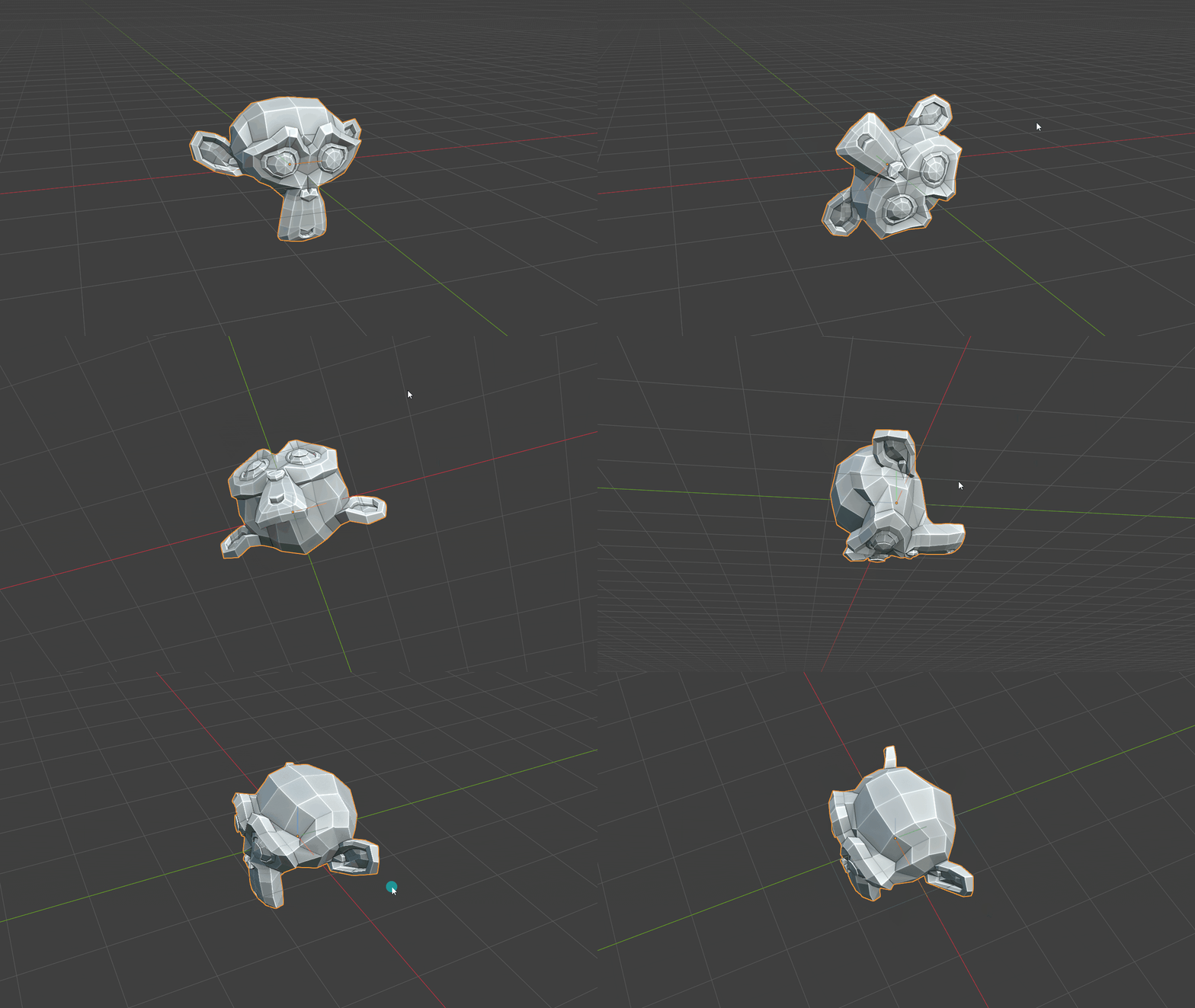
VP Axis Rotate
Hold the assigned Rotate shortcut (R by default) to rotate around whichever local X, Y or Z axis points most toward the viewport.
A quick tap still starts Blender's normal Rotate tool. When the configured hold delay elapses (0.30 seconds by default), H3D selects the best-facing local axis and hands off to Blender's native constrained Rotate transform, so snapping, numeric input and Shift precision continue to work normally. Set the shortcut and delay under H3D Toolkit > Navigation Hotkeys in Blender's Add-on Preferences.
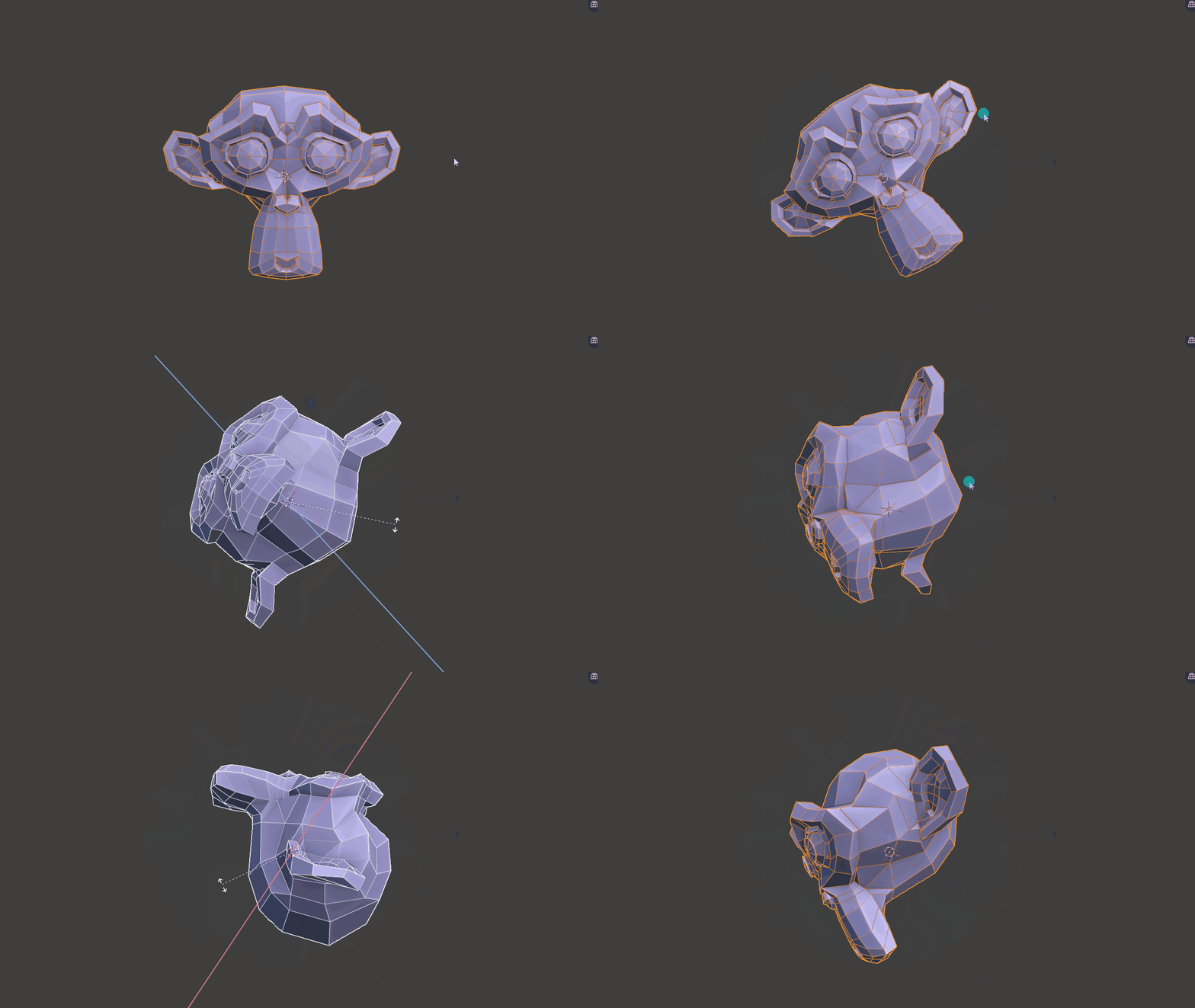
VP Planar Move
Automatically locks the axis facing the camera and moves objects along the other two axes. Hold the assigned Move shortcut (G by default) for the configured duration (0.30 seconds by default) to activate. A quick tap starts Blender's normal Move tool.
The shortcut and delay are adjustable under H3D Toolkit > Navigation Hotkeys in Blender's Add-on Preferences. The tap/hold shortcuts work in Object Mode and Mesh Edit Mode.
Each of the four navigation hotkeys (VP Planar Move, VP Axis Rotate, VP Step Rotate +45°, and VP Step Rotate -45°) also has an enable/disable checkbox in Add-on Preferences. Unchecking it removes that hotkey binding without clearing its assigned key, modifiers, or hold delay. Check it again to restore the saved binding. All shortcuts are enabled by default.